Planet Zoo 2 Flexi-Colour Guide: Recolouring Scenery and Paths
Planet zoo 2 flexi colour lets you repaint scenery and paths to match your theme. Learn which pieces support it, how to build a palette, and mistakes to avoid.
Quick answer: Flexi-colour in Planet Zoo 2 is the confirmed recolouring system that lets you change the colours of applicable scenery pieces — expanded from the original game to cover more objects, including paths, railings and supports. Pick a small palette tied to your scenery theme, apply it to buildings, props and path networks, and your whole zoo reads as one deliberate design instead of a collage of default assets.
What Is Flexi-Colour in Planet Zoo 2?
Flexi-colour is Frontier’s name for per-object colour customisation, and it returns in the sequel substantially expanded. The official creative tools announcement is direct: flexi-colour has been expanded, with more objects — paths explicitly included — able to have their colour customised. The accompanying pathing suite goes further, letting you choose everything from the colour of your paths to their railings and supports.
That expansion changes the role colour plays in zoo design. In the original game, recolouring existed but covered a narrower slice of the catalogue, so most zoos kept the default palettes of their assets and coherence depended on picking the right theme. In the sequel, colour becomes a first-class design tool: the piece you want can usually be made the colour you need. Combined with confirmed scenery scaling and mirroring, it flattens the old compromise between using a convenient asset and keeping your visual identity.
Which Pieces Can You Recolour?
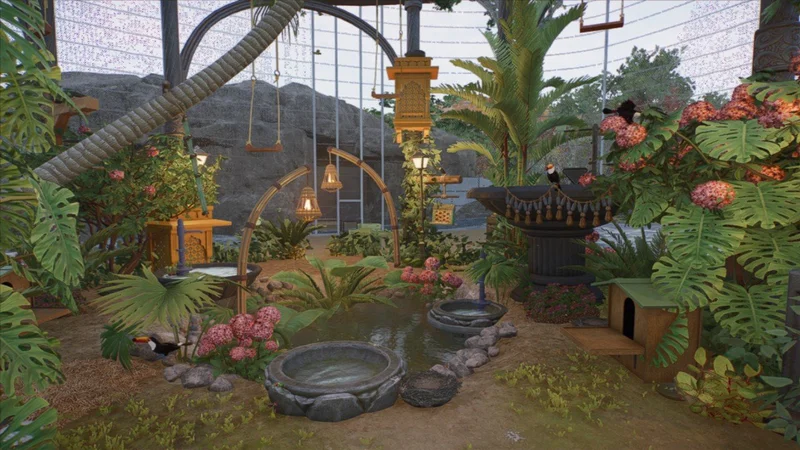
The official player guide describes the Browser’s scenery catalogue as full of items with a flexi-colour option, which is the practical answer: check the piece’s settings after selecting it, and if the colour controls appear, the piece supports it. Confirmed categories include themed scenery props and building pieces, plus the path network itself — surface, railings and supports are all customisable through the path tools.
Two adjacent systems are worth separating from flexi-colour. Screens and education devices accept custom media, so billboards and speakers can show your images and audio rather than a repaint. Aquariums offer water tone customisation, which tunes the water rather than the glass. The full object list supporting flexi-colour at launch, and any per-piece colour channel limits, are specific figures still under community testing — expect the roster to grow as Frontier updates the game.
One more confirmed lever: Advanced Mode, toggled on in the build tools, unlocks additional options when decorating your zoo. If you cannot find a colour control you expect, check whether Advanced Mode is enabled before assuming the piece is locked to its defaults.
How Do You Choose Colours That Fit Your Scenery Theme?
Planet Zoo 2 ships with four brand-new scenery themes plus five returning favourites from the original, each with iconic architecture from around the world. Flexi-colour does not replace themes — it extends them. The reliable method is to let the theme set your base and use flexi-colour for the accent layer.
Start with two or three hues: a dominant colour drawn from your main theme’s materials, a neutral that repeats across districts, and one accent that flags guest-facing highlights like shopfronts, vista points and habitat viewing areas. Repeat the accent at intervals along your main avenue so guests learn to read it as wayfinding. Then apply your neutral and accent to the paths themselves — path colour, railings and supports are the largest continuous surfaces in any zoo, and recolouring them moves the whole park’s identity more than repainting any single prop. Our scenery themes guide breaks down the palettes you are working with.
Colour is cosmetic. It sets atmosphere and guest experience, but it is no substitute for the welfare work underneath — keep the four welfare pillars green with the animal welfare guide before you polish the paint.
Can Flexi-Colour Tie Blueprints and Custom Builds Together?
This is flexi-colour’s highest-value job. Every zoo mixes sources: Frontier’s pre-made blueprints, thousands of community Workshop creations, and your own piece-by-piece construction. Left at default colours, that mix reads as a patchwork. Recoloured into one palette, it reads as intention.
The workflow is simple. Place your blueprint, enter Group Edit Mode as covered in our blueprints how-to, select the pieces that clash, and flexi-colour them into your district palette. Do the same to any Workshop building you drop in. Because path colour is customisable too, you can carry one accent hue from the entrance plaza through every district, so guests feel the identity even before they name it. For the opposite workflow — starting from nothing — our piece-by-piece building guide covers full custom construction.
What Flexi-Colour Mistakes Should You Avoid?
Three mistakes waste more repaint time than any others. First, the rainbow problem: flexi-colour makes every colour available, and new builders use all of them. A zoo with seven accent colours has none; cap your palette and let repetition do the design work. Second, ignoring the back of house. Staff buildings, keeper areas and service paths are easy to leave at default, and their mismatched colours leak into guest sightlines — recolour them into a quieter variant of your palette. Third, forgetting paths entirely: the confirmed path customisation options are the most underused recolouring surface in the game, and the cheapest way to unify a district.
Resist repainting while you build. Get the layout right first — paths, habitats and facilities working together as our habitat design guide describes — then paint once at the end. Colour is the last layer, and it only flatters a layout that already works.
Related Articles
building
How to Use Blueprints in Planet Zoo 2: Browser, Placement and Editing
Learn how to use blueprints planet zoo 2: find pre-made and Workshop designs in the Browser, place them accurately, and adapt them with Group Edit Mode.
building
Planet Zoo 2 Piece-by-Piece Building Guide: Total Control
A planet zoo 2 piece by piece building guide covering the component library, grid snapping, alignment, mirroring, scaling, and the real performance cost of control.
building
Planet Zoo 2 Terrain Editing: Sculpt, Water and Path Tools Guide
Planet Zoo 2 terrain editing guide: sculpt and paint tools, adding and customising water, filtration networks, and every path building tool explained.
Was this helpful?
Thanks for the feedback!